Have you ever built the perfect WordPress website, only to watch it load with the sluggishness of a sloth? If your visitors are tapping their fingers impatiently while your site crawls, you’re not just annoying your users; you are actively losing potential customers and hurting your search engine rankings. Speed matters, and a slow website is one of the biggest silent killers of online businesses.
If you’ve felt that mounting frustration and are wondering why your site is dragging its feet, you are in the right place. Website speed is rarely due to a single problem. Instead, it’s usually a combination of factors, from cheap hosting to bulky images and overwhelming plugins.
We are going to walk you through exactly why your site might be slow and, more importantly, give you practical steps to fix it. This comprehensive guide will cover everything from checking your hosting quality and optimizing your images to understanding the hidden dangers of bloated databases and unnecessary scripts. We’ll give you a clear roadmap, so you can start fixing those speed issues today without feeling overwhelmed.
How to Know Your WordPress Site Is Actually Slow
Start with Google’s Core Web Vitals. LCP measures loading, INP measures responsiveness to clicks and taps, and CLS measures visual stability. Google publishes good/needs improvement/poor thresholds for each, check the Core Web Vitals documentation for the current values.
Check TTFB separately. A common rule of thumb is that a TTFB above 800 milliseconds may point to hosting, not your theme.
- Run PageSpeed Insights for both mobile and desktop, Google’s mobile-first approach means the mobile score deserves particular attention.
- Pull Search Console’s Core Web Vitals report for real visitor data, rather than a lab simulation.
- Cross-check GTmetrix or WebPageTest for a waterfall view naming the stalling file.
- Repeat two or three times and read the pattern, not the best-case number.
If the numbers look bad, our Website Speed & Technical Quality service can help; Canadian businesses can start with this SEO provider evaluation guide.
Cause 1: Cheap Shared Hosting and Slow Server Response Time
If TTFB stays high on every page, even simple ones, the culprit is usually hosting, not your theme. Budget shared hosting squeezes hundreds of sites onto one server, so your CPU, RAM and database queries queue behind strangers.
The fix: managed WordPress hosting, or at least a plan with dedicated resources, dedicated PHP workers and SSD storage. It costs more. Do these first, before rewriting your theme: enable server-level caching and upgrade your hosting tier. Weighing a rebuild? Read this decision framework for Canadian founders.
Re-test TTFB after the change to confirm improvement.
Slow sites aren’t a WordPress-only issue. The 2025 Web Almanac analysed 17.2 million live websites.

Cause 2: A Bloated or Poorly Coded Theme
Once hosting is sorted, your theme becomes the next suspect. Even with only a few plugins, a heavy theme can drag every page down. If your pages pull in dozens of CSS and JavaScript files you never added, the theme is likely the culprit. Multipurpose do-everything themes bundle page builders, sliders, icon fonts, and demo features you will never use. The fix: switch to a lightweight theme or block theme, or strip unused features from your current setup. Watch for theme-plus-page-builder stacks, where both layers load their own CSS and JavaScript on top of each other. Compare request counts and total page weight in GTmetrix or WebPageTest before and after. A lean custom build is one reason What Good WordPress Development Actually Delivers: Results That Matter tends to outperform a theme-plus-plugins stack. Next: plugin overload.
Cause 3: Too Many Plugins, and Poorly Built Ones
Even with a lean theme, plugins can undo the gains. Each one adds its own CSS, JavaScript, and database queries, and in the author’s experience, a site running 30 or more active plugins rarely loads fast, plugin count alone isn’t the issue, but each one adds overhead. Plugins are built to add features, not speed, so many load assets site-wide even where the feature isn’t used.
Audit active plugins and deactivate or delete anything unused. Swap heavy multipurpose tools for lighter, single-purpose alternatives. Favour well-maintained plugins with recent updates and responsive support, and check whether each loads assets site-wide or only where needed.
To verify, deactivate plugins in batches on a staging copy and re-measure. Query Monitor helps you spot slow plugin queries. Finally, note what each plugin does so future audits are quicker and you don’t remove something the site depends on.
Cause 4: Unoptimised Images
Plugins aren’t the only bloat. Images are the heaviest asset type on most pages, and CSS often shrinks giant photos rather than serving them at the right size. Camera and stock files arrive multi-megabyte and often never get compressed or resized.
Resize each image to the size it displays at, then compress it. Serve modern formats like WebP or AVIF as general best practice. Use srcset so phones fetch smaller files, and lazy-load anything below the fold. Never lazy-load your LCP image.
PageSpeed Insights will surface oversized images and your LCP element. As the Web Almanac confirms, page weight has ballooned across the decade. See Mobile Optimization and Core Web Vitals.
Cause 5: No Caching Layer
If your images are sorted and the site still feels sluggish, check caching next. WordPress builds pages dynamically by default, so the server repeats identical work for each visitor, adding measurable delay.
Add page caching at host level or through a plugin, object caching such as Redis or Memcached for database-heavy sites, and browser caching for static assets. Exclude forms, carts and logged-in pages so nothing breaks. Re-check TTFB in PageSpeed Insights after enabling caching to confirm the gain. Caching and Core Web Vitals sit where hosting meets SEO, so pair this with an SEO audit.
Cause 6: Render-Blocking CSS and JavaScript
Your caching layer is sorted, but the page still hangs before anything appears. That pause is render-blocking CSS and JavaScript: the browser stops painting while it downloads and runs stylesheets and synchronous scripts sitting in your document’s head.
The fix is to get those files out of the critical path. Add defer or async to non-critical JavaScript, inline the CSS needed for above-the-fold content, and load the rest asynchronously. Delete CSS and JavaScript your theme or plugins never use. Minify and combine where it genuinely helps, but do not bundle so aggressively that plugin dependencies break.
To verify, run Lighthouse’s “Eliminate render-blocking resources” and “Reduce unused JavaScript” audits, then re-check your LCP. JavaScript is a major contributor to page weight, so trimming it usually pays off twice.
Cause 7: A Bloated WordPress Database
Render-blocking files are only part of the story. A database stuffed with years of junk slows you down too.
Symptom: your admin dashboard drags and queries run long, even on pages that are otherwise light. Post revisions, expired transients, spam comments, and orphaned metadata pile up quietly over years of publishing.
The fix: back up the database first. Then clean old revisions and expired transients, empty spam and trashed comments, and remove orphaned tables left behind by deleted plugins. Set a sensible revision limit so the mess does not rebuild.
How to verify: Query Monitor flags slow queries. Compare database size and query time before and after cleanup. Next, check which PHP version your server runs.
Cause 8: An Outdated PHP Version
Cleaning up your database helps, but there is another layer underneath it: the version of PHP your server runs. If that version is old, your code executes more slowly and no longer receives security support. Hosts keep legacy versions for compatibility, and most site owners never check their version.
The fix: test on a staging copy, then update to a current supported PHP release. PHP 8.x is generally regarded as significantly faster than older branches, check a current benchmark for your workload and confirm your theme and plugins are compatible before switching. Keep PHP current as new releases ship.
Your host control panel shows the active version. Re-test TTFB and total page load time after the upgrade to confirm the gain.
Cause 9: No CDN or Poor Geographic Delivery
Even with a current PHP version, geography can still work against you. If visitors in Vancouver wait noticeably longer than visitors sitting next to your server, distance is the culprit.
Without a content delivery network (CDN), every request travels to your single origin server. The further away someone is, the more latency they pick up along the way.
The fix: put a CDN in front of your site. Static assets like images, CSS, and JavaScript then get served from edge locations near each visitor instead of from your server. If your host supports them, also turn on HTTP/2 or HTTP/3 and keep-alive connections.
To verify, test from several regions in WebPageTest and compare TTFB and LCP across locations.
Cause 10: Third-Party Embeds, Fonts and Tracking Scripts
Symptom: Even with a CDN, your site still waits on servers you don’t control. A stalling video embed, map, chat widget or ad tag stalls your page with it.
Why it happens: Each one adds requests and execution time, and web fonts are no exception.
The fix: lazy-load or click-to-load embeds, host fonts locally and subset them, and audit tracking scripts so only the tags you actually use are loading. Consider variable fonts too: the 2025 Web Almanac reports about 39.4% of desktop sites and 41.3% of mobile sites use at least one, as a single file replaces several weights.
How to verify: check the third-party summary in Lighthouse and PageSpeed Insights. It shows what each external host costs you.
Cause 11: Redirect Chains and Broken Links
External scripts are only part of the story. A link that bounces through several redirects before it resolves slows the request, and any link landing on a 404 sends visitors nowhere. These chains build up quietly after site migrations, permalink changes, and deleted pages, because each fix gets stacked on the last. Collapse every chain into a single hop, update internal links to point straight at the final URL, and repair or remove broken ones. This kind of cleanup sits squarely in redirects and URL migration territory. Audit in bulk with Screaming Frog or the Search Console page indexing report. Then re-crawl to confirm each internal link resolves in one request, with zero 404s.
A Practical Fix Order So You Are Not Overwhelmed
Once redirects are tidy, resist the urge to fix everything at once. Work in this order:
- Confirm you have a baseline from the diagnostic steps above.
- Start where the return is highest and effort lowest: hosting and TTFB, then caching, then images. These three often account for most of the gain.
- Next, trim theme and plugin weight, then tackle render-blocking CSS and JavaScript.
- Then handle the database, the PHP version and your CDN setup.
- Finish with third-party scripts and redirect chains. Set up ongoing monitoring so regressions get caught early.
- Re-measure after each change so you know what actually worked. Keep a changelog of everything you altered.
If you need help mapping the full technical project scope, bring in support before you start.
Where Performance and Accessibility Overlap
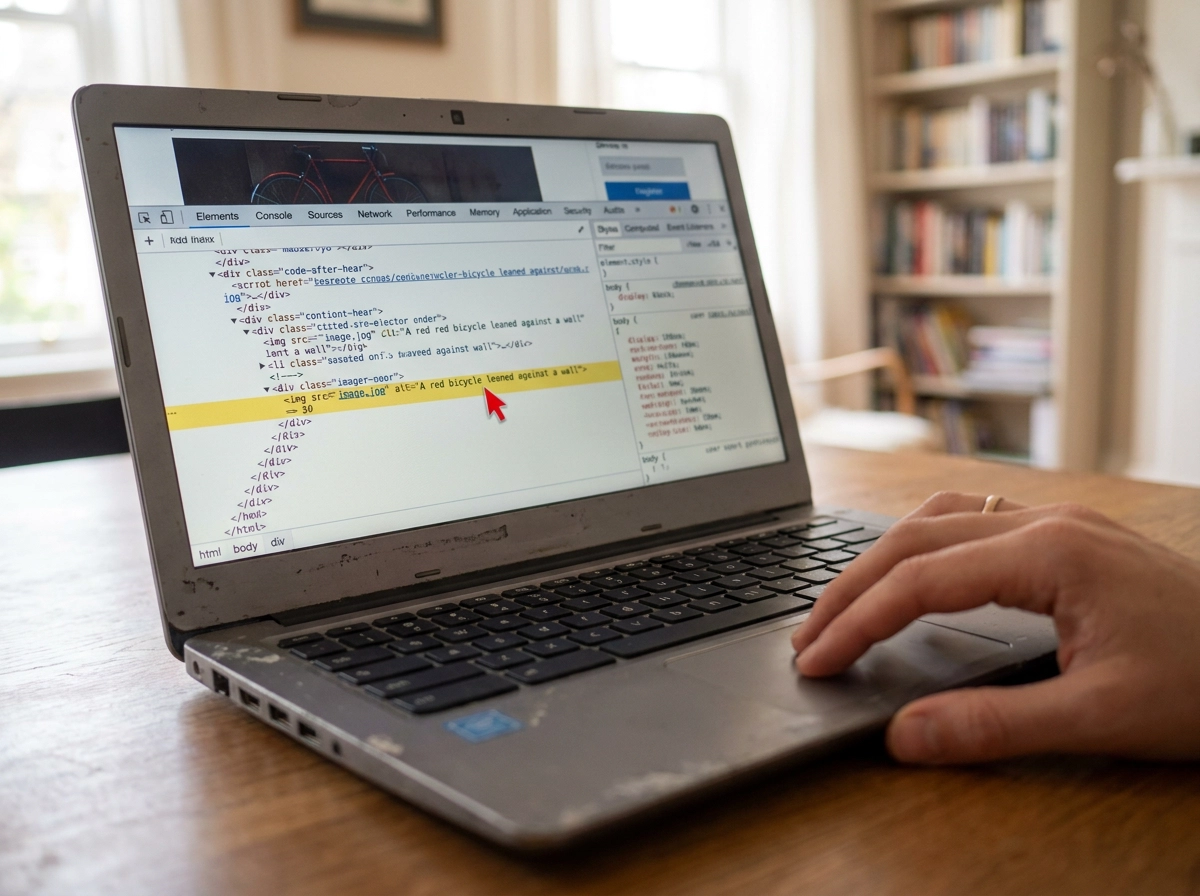
Once your fix list is in place, it is worth knowing that speed and accessibility are not separate projects. Both shape how real visitors experience your site, and both affect how search engines read it.
Image alt text is the clearest example. The 2025 Web Almanac summary found 30% of sites leave the alt attribute empty and 14% omit it entirely (source: CSS-Tricks). Screen readers lose that content, and search engines lose the context.
Removing focus outlines is another common failure, with 67% of sites stripping them (source: CSS-Tricks). Colour contrast compliance has crept from 21% of sites in 2020 to 30% in 2025.
Treat these as supporting signals. Your main gains still come from weight, hosting, and rendering.
When to Bring In a Specialist
If accessibility is sorted and your site still drags, the fixes above cover hosting, caching and images well. Deeper problems, like messy database queries or stubborn Core Web Vitals failures after the basics are done, usually need someone who works with WordPress daily. So does a fix that broke your site. Rebuilding a bloated theme or untangling plugin conflicts safely is skilled work, not a plugin install. A specialist also connects speed to design, SEO and conversion, rather than chasing a score in isolation. If you would rather hand the technical side over, our WordPress and SEO services can do it. Not sure who to hire? Start with Choosing the Right SEO Specialist for Your Business.
Conclusion: Pick Two Fixes and Start Today
If you would rather keep it in-house for now, that is fine too. The good news: a slow WordPress site is rarely one big failure. It is usually a stack of small problems, which means you can fix it in stages.
Start with the three highest-impact moves: better hosting, a real caching layer, and properly compressed images. The fix order above tells you where to start.
Speed is not a one-off job. It needs monitoring as you add content, plugins, and third-party scripts. So do not try to do all eleven fixes this week. Pick two or three, finish them, and build from there.